
How To Optimise Your LinkedIn Profile To Sell More
A brief introduction
You’ll no doubt already be aware that LinkedIn is now the ‘go to’ place for prospects to learn about you, your business, your services, and validate your offering.
After meeting you in person, receiving a connection request, or discovering one of your LinkedIn posts, prospective customers will look at your profile to validate you and your company’s services.
When you’re promoting your services through LinkedIn, your profile effectively becomes another ‘website’ for you and your brand.
‘Optimising’ your LinkedIn profile means whipping your profile into shape. It means turning your profile into a sales page that persuades your ideal clients to enquire about your company’s services or book a call.
Note: Your profile should ideally focus on one business only. If you run multiple businesses alongside each other, it can make it hard for prospects to understand what you do and how you can help. Unless your businesses are in the same industry or closely related, trying to promote multiple businesses through one profile is likely to lead to zero LinkedIn sales for any of your businesses.
I’ve been active on LinkedIn since 2007* and, having used it to grow several clients’ businesses, including my own, using content, LinkedIn ads, and LinkedIn outreach, I wanted to share some guidance on how best to optimise your LinkedIn profile.
As my LinkedIn Profile is fully optimised, throughout this post I’ll share screen grabs from my profile as examples alongside some tips to get you started.
* PS If you’d like to find out how long you’ve been on LinkedIn, navigate to your profile, then go to "About this profile" (usually under the "More" section) or "Settings & Privacy" -> "Data Privacy" -> "Manage your data and activity". The date you joined will be displayed on the last page of your activity.
Optimising LinkedIn Images
Don’t underestimate the importance of the images on your LinkedIn profile. They’re the first thing a user sees when they glance at your profile, so make sure your profile picture and cover images both give a good first impression.
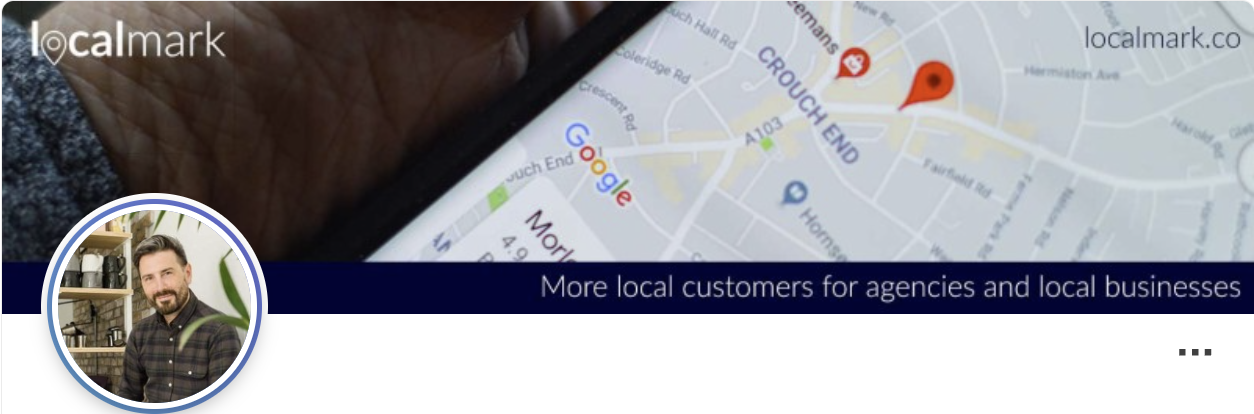
Optimise your LinkedIn Profile Picture and Cover Image
Optimise Your LinkedIn profile picture
Ensure your Profile Picture is a professional and up-to-date image.
Most people will glance at your photo before deciding whether or not to connect with you on LinkedIn.
Tip: If you have a good headshot but it doesn’t have a white background, make the background white using this free tool.
Make sure your Profile Photo visibility is set to Anyone to ensure it can be seen by people you’re asking to connect:
Click the Me icon at the top of your LinkedIn homepage > Click View Profile > Click on your profile photo > Click the Visibility icon on the left of the Profile photo pop-up window, and select from the following options: Anyone
Optimise Your LinkedIn cover image
Ideally, your LinkedIn cover image (the banner above your profile photo) will be a personalised image that is relevant to your business.
Tip: Use Canva (free) to create a personalised LinkedIn banner image.
If you don’t feel comfortable creating a graphic style image from scratch, start with a photo relating to your products, services or industry. Alternatively, a photo of the city your business is based in works well.
Tip: Find a suitable royalty-free image on Unsplash.
Optimising Your LinkedIn Name, Headline & Location
Here is mine as an example:
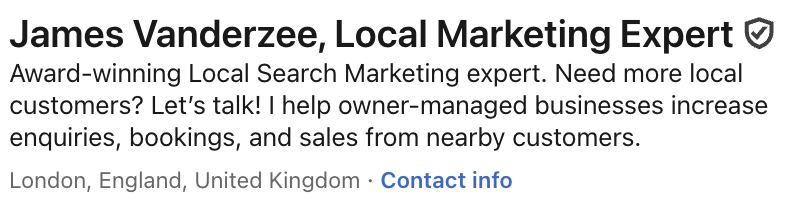
Optimising Your LinkedIn Name, Headline & Location
Optimise Your LinkedIn Name
Ensure your name is exactly as people would expect to be able to find you, but also, after your name, add a comma and type out what you do. For example:
“HR recruitment expert”
“Expert Leadership Coach”
Often, your name is the only thing people will read, so use this opportunity to tell them precisely what you do.
Tip: Unless your business name is descriptive of your offering or very well known, it’s not good practice to include it here.
Optimise Your LinkedIn Headline
Use your headline to summarise your offering and identify your client niche.
Put yourself in your ideal client’s shoes; after reading your headline, they should know immediately what your offering is and whether or not it is relevant to them.
Don’t be afraid to be very specific here; being specific will prevent you from wasting time on unqualified leads. For example, if you only work with financial services businesses in the UAE, turning over over £50K/mo, specify that.
Tip: LinkedIn has a restriction on headline character counts. Update your headline on the LinkedIn mobile app (rather than on linkedin.com) and you’ll be able to add in a longer headline like mine!
Optimising Your LinkedIn Location
Check it’s correct!
Adding & optimising your “About” section
Add an About section to your profile, and use it as a sales letter for your business. Stay away from jargon and boring stuff about your company.
Identify your prospects’ pain points and tell them how your service or product solves their problems.
Again, put yourself in your ideal client’s shoes. What do THEY need to hear to make them decide it’s worth their while to have a call with you?
A few points to remember:
Use short paragraphs - many people will only skim your summary, so don’t overwhelm them with long, wordy paragraphs
Keep it short and sweet - no one wants to read an essay. Just provide enough information to tempt prospects to get in touch!
Include a call to action to encourage people to get in touch.
Check out the About section on my LinkedIn Profile.
Adding & optimising your LinkedIn Profile’s “Featured” section
To add a Featured section to your profile, click on ‘Add profile section’, then choose ‘Featured’ from the options, and select 1 or 2 key documents or links to showcase your business to LinkedIn prospects.
Here’s my Featured section as an example:
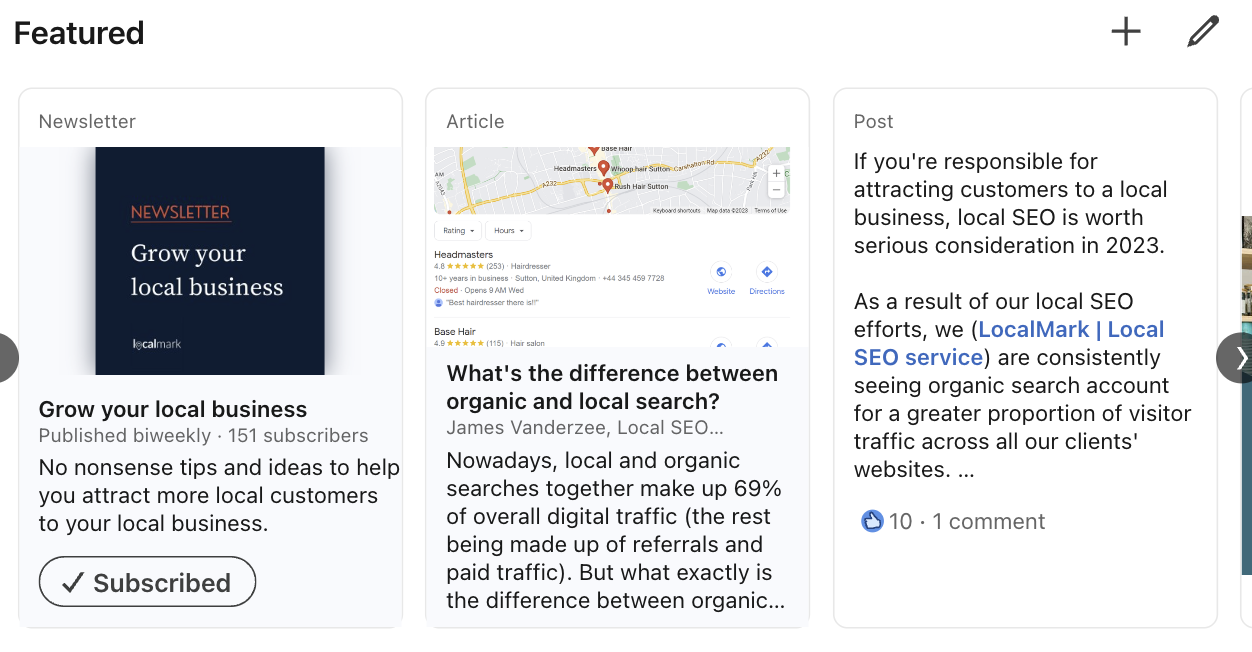
Adding & optimising your LinkedIn Profile’s “Featured” section
Use this function to add material that will further convince your prospects. I use this to link to my LinkedIn Newsletter, align with LinkedIn Articles and Posts.
Other ways you can use this function:
A link to your website
A video or presentation
A link to your appointment booking page
Create a personalised LinkedIn URL
Create a personalised URL for your profile by clicking “Public profile & URL” in the top right corner of your profile.
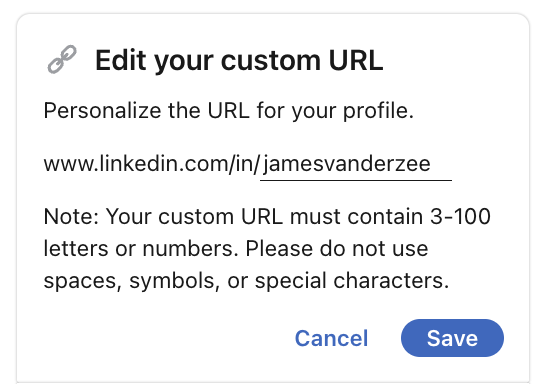
Create a personalised LinkedIn URL
In the new tab that opens, hit the ‘edit’ pen symbol to personalise your LinkedIn URL. It’s good practice to include your name and/or business name.
Add recommendations to your LinkedIn Profile
Ask for recommendations from satisfied clients and partners.
These act as testimonials, providing third-party validation of your business’s value and expertise.
If you’re already growing your online reviews, to make things easier for clients and partners to provide these, your Google and Facebook reviews can be repurposed here.
Add a Call To Action (CTA)
Include a strong, clear CTA in your “About” section, encouraging visitors to take action (e.g., "Contact us for a free consultation" or "Schedule a demo").
Make it easy for potential clients to know what to do next.
Here’s mine as an example:

Add a Call To Action (CTA)
Add Industry-specific keywords
Optimise your profile with relevant keywords that potential customers may use when searching for your services.
These should be integrated naturally into your headline, summary, and experience sections.
Other tips
Get verified!
Refine the other information on your profile to support your position as an expert in your industry.
Remove information that does not support your expertise. For example, unless you work in hospitality, there’s no need to mention that bar job you had at university on your profile.